
How to Tag a PDF for Accessibility - and Why Tagging Alone Is Not Enough
A Comprehensive Guide
Contact us to discuss how we can remediatie your PDFs.
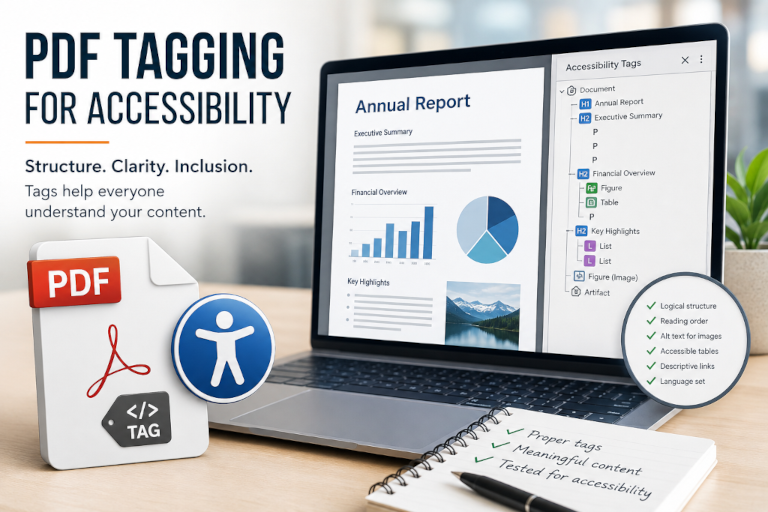
PDF tags are an essential part of document accessibility. They provide the underlying structure that helps screen readers and other assistive technologies understand how a document is organised.
However, adding tags does not automatically make a PDF accessible.
A document can be tagged and still contain an incorrect reading order, poorly structured tables, missing alternative text, inaccessible form fields and other barriers that make the content difficult to understand or navigate.
In this article, we explain how to tag a PDF for accessibility, what those tags actually do and why professional PDF remediation may involve considerably more than selecting an automatic tagging option.
What Are Accessibility Tags in a PDF?
PDF tags are hidden structural labels attached to the content within a document.
Visually, a PDF might contain a title, headings, paragraphs, lists, tables, links and images. Without appropriate tags, assistive technology may not be able to identify the purpose of these elements or understand how they relate to one another.
A properly structured tag tree might identify document elements such as:
- headings;
- paragraphs;
- lists and list items;
- tables, rows and cells;
- figures and images;
- links;
- form fields;
- quotations;
- captions; and
- decorative content.
Tags also help establish the order in which the document content should be presented to someone using a screen reader.
Adobe explains that document structure tags define the reading order and identify elements such as headings, paragraphs, sections and tables.
Tags are therefore fundamental to PDF accessibility—but they are only the underlying framework.
How to Tag a PDF for Accessibility in Adobe Acrobat Pro
Adobe Acrobat Pro includes tools that can automatically generate an initial tag structure for an untagged PDF.
The precise interface may vary between Acrobat versions, but Adobe’s current process is:
- Open the PDF in Adobe Acrobat Pro.
- Select All tools.
- Open Prepare for accessibility.
- Select Automatically tag PDF.
- Allow Acrobat to analyse the document and create a tag tree.
- Review any issues identified in the Add Tags Report.
- Open the Accessibility Tags panel and manually inspect the resulting structure.
Adobe recommends creating the tags when exporting the PDF from an authoring program such as Microsoft Word or Adobe InDesign where possible. This allows the PDF to draw upon the heading styles, lists and other structural information contained within the original document.
Automatically tagging the finished PDF should generally be treated as the beginning of the remediation process rather than the final step.
What Happens When Acrobat Automatically Tags a PDF?
When the automatic tagging tool is run, Acrobat analyses the visible content and attempts to determine:
- which text is a heading;
- which content forms a paragraph;
- whether content is part of a list;
- whether an element is an image;
- how tables may be structured;
- where links appear;
- the intended reading order; and
- how the elements fit together in the tag tree.
This can provide a useful starting point for a relatively simple, well-organised document.
The problem is that Acrobat must make assumptions about the document’s meaning.
It may recognise that text is larger or bolder than surrounding content, but that does not necessarily mean the text is a heading. It may identify a group of lines as a table without correctly understanding the relationship between the row and column headings. It may also struggle with columns, text boxes, sidebars, complex layouts and graphical content.
Adobe specifically warns that automatic tagging cannot always correctly interpret complex page elements or their intended reading order. Closely spaced columns, irregular text alignment, borderless tables and form elements can produce incorrectly combined or out-of-sequence tags.
Every automatically generated tag tree should therefore be manually reviewed.
How to Review the PDF Tag Structure
After adding tags, open the Accessibility Tags panel in Acrobat Pro and examine the tag tree.
The tags should reflect both the visual structure and the meaning of the document.
For example:
- the document title should normally be identified as the primary heading;
- section headings should use an appropriate heading hierarchy;
- ordinary text should be contained within paragraph tags;
- bullet and numbered lists should use proper list structures;
- tables should include correctly associated header and data cells;
- meaningful images should be identified as figures;
- decorative items should generally be marked as artifacts; and
- links should be correctly included within the document structure.
It is not enough to check that tags exist. Each tag must identify the content correctly and appear in a logical location within the tag tree.
Empty, duplicated, incorrectly nested or unnecessary tags may also need to be removed.
Check the Reading Order
Reading order determines the sequence in which screen readers and other assistive technologies present the content.
The visual order of text on a page is not always the same as the underlying reading order.
This is particularly important in documents containing:
- multiple columns;
- sidebars;
- callout boxes;
- headers and footers;
- footnotes;
- images with captions;
- tables;
- forms; or
- complex page layouts.
A document may appear perfectly logical to a sighted reader while a screen reader presents sentences, headings or columns in the wrong sequence.
The reading order should be checked manually through the tag tree and, where appropriate, through Acrobat’s reading-order tools. W3C’s PDF accessibility techniques treat correct tab and reading order as a separate accessibility consideration rather than something solved simply by the presence of tags.
Add Appropriate Alternative Text
Meaningful images need text alternatives that communicate their purpose or the information they contain.
This may include:
- photographs;
- diagrams;
- charts;
- graphs;
- maps;
- icons; and
- instructional illustrations.
The alternative text should be based on the image’s purpose within the document, not merely a literal description of its appearance.
For example, “blue and red bar chart” does not communicate the findings shown by a chart. A useful text alternative may need to explain the comparison, trend or conclusion the reader is expected to understand.
Decorative images that do not communicate meaningful information should generally be marked as artifacts so they are not unnecessarily announced by screen readers.
An automated checker may be able to detect that an image has alternative text, but it cannot conclusively determine whether that text accurately communicates the image’s meaning.
Repair Tables, Lists and Other Complex Structures
Tables are one of the most common sources of PDF accessibility problems.
An accessible table may require:
- a correctly identified table structure;
- table row tags;
- table header and data cell tags;
- appropriate association between headers and cells;
- a logical reading sequence; and
- additional information for particularly complex tables.
Adobe recommends checking tables manually because their structure can be difficult for automated tools to interpret correctly.
Lists also require more than applying a single generic tag. The list itself, each individual list item, its label and its content may need to be represented correctly within the tag tree.
Similar care may be required for quotations, footnotes, captions, formulas and other specialised content.
Check Links and Bookmarks
Links should be keyboard accessible and contain meaningful link text.
Generic wording such as “click here” or a complete web address may be difficult to interpret when announced outside the surrounding sentence. Where appropriate, the accessible name of the link should explain its destination or purpose.
Longer documents may also require bookmarks to help users navigate directly between major sections.
Bookmarks do not replace a correct heading structure, but they can provide an additional method of navigation.
Remediate Accessible PDF Forms
PDF forms require specific accessibility work beyond ordinary document tagging.
Form fields may need:
- meaningful accessible names;
- instructions;
- tooltips or descriptions;
- keyboard operation;
- a logical tab sequence;
- clear required-field information;
- accessible error identification; and
- correct inclusion within the document structure.
A form may look straightforward visually but become unusable when its fields are announced in an unclear order or without meaningful labels.
Automatic tagging alone is unlikely to address every aspect of an interactive PDF form.
Set the Document Properties
Accessible PDF remediation can also include checking the document’s underlying properties.
These may include:
- the document title;
- the primary document language;
- the language of individual passages where required;
- bookmarks;
- page numbering;
- security settings;
- link behaviour; and
- whether all meaningful content is either tagged or correctly marked as decorative.
Setting the language helps compatible screen readers use the appropriate pronunciation rules. The title also helps users identify the document when it is opened or viewed alongside other files.
These requirements can easily be overlooked when someone focuses only on the visible content and the presence of a tag tree.
Run an Accessibility Checker
Once the document has been remediated, it should be reviewed with appropriate PDF accessibility testing software.
Adobe Acrobat includes an accessibility checker that can identify many technical issues. Other specialist tools can validate documents against standards such as PDF/UA.
However, automated testing has limitations.
Software can often identify whether:
- a document has tags;
- a language has been set;
- an image is missing alternative text;
- a table contains expected structural tags;
- a document title is present; or
- content has not been included in the tag tree.
It cannot reliably decide whether:
- the heading hierarchy makes sense;
- the reading order communicates the content correctly;
- alternative text describes an image appropriately;
- a complex table is understandable;
- link wording is meaningful;
- an instruction is clear; or
- information has been communicated effectively to people with different disabilities.
Testing therefore needs to combine automated validation with informed manual review. Even PDF/UA conformance does not, by itself, address every possible accessibility issue within a document’s content or visual design.
Why Tagging Alone Does Not Make a PDF Accessible
PDF tagging addresses the document’s technical structure. Accessibility can also be affected by the original content and visual design.
A tagged PDF may still contain:
- insufficient colour contrast;
- information communicated using colour alone;
- small or difficult-to-read text;
- text placed over complicated images;
- text embedded inside graphics;
- inaccessible charts and diagrams;
- unclear instructions;
- poor link wording;
- unnecessarily complex language;
- scanned pages without reliable text recognition; or
- layouts that are difficult to navigate or magnify.
Some of these problems can be corrected directly within the PDF. Others may require access to the original Microsoft Word, PowerPoint, Adobe InDesign or other editable source file.
This is why effective PDF accessibility remediation may include both technical PDF work and changes to the original document design.
Can You Make a PDF Accessible Yourself?
It is possible to improve a simple PDF yourself when you have:
- Adobe Acrobat Pro or suitable remediation software;
- access to the original source document;
- an understanding of document structure;
- knowledge of applicable accessibility requirements; and
- enough time to inspect and test the document carefully.
A short, text-based document with a straightforward layout may be relatively manageable.
Professional assistance should be considered when the document contains:
- complex or borderless tables;
- forms;
- charts and diagrams;
- multiple columns;
- unusual page layouts;
- scanned content;
- large numbers of images;
- technical or scientific information;
- significant visual design barriers;
- a large number of pages; or
- a firm publication or compliance deadline.
Organisations may also require specialist assistance when they have an entire library of existing PDFs rather than a single document.
What Does Professional PDF Document Remediation Include?
Professional PDF document remediation involves reviewing the document as a whole rather than applying one automated correction.
Depending on the file, remediation may include:
- creating or repairing the tag structure;
- correcting headings and heading hierarchy;
- structuring paragraphs and lists;
- repairing the logical reading order;
- remediating tables;
- writing or reviewing alternative text;
- identifying decorative content;
- improving links and bookmarks;
- setting the document title and language;
- labelling form fields;
- correcting keyboard and tab order;
- repairing scanned or image-only content;
- removing incorrect or empty tags;
- addressing design barriers within the source document; and
- completing automated and manual accessibility testing.
This process requires both technical knowledge and human judgement.
PDF Remediation Services from Atomic Web Strategy
Atomic Web Strategy provides PDF remediation services for businesses, government organisations, councils, universities, not-for-profit organisations, disability service providers and other organisations that need accessible digital documents.
We can assist with individual PDFs, complex reports, forms, recurring publications and larger document collections.
Our process can include:
- reviewing a representative document;
- identifying technical and design accessibility barriers;
- determining whether the editable source file is required;
- defining a clear remediation scope;
- coordinating technical and design remediation;
- testing the completed documents; and
- identifying any limitations that cannot be corrected within the available files or agreed scope.
Where required, completed documents can be tested against the accessibility standard agreed for the project, with a validation certificate or report supplied.
Need Help Making Your PDFs Accessible?
Automatically adding tags may improve an untagged PDF, but it should not be treated as proof that the document is accessible.
The tag structure, reading order, tables, images, links, forms, document properties and visual design may all require additional review.
Atomic Web Strategy’s PDF accessibility remediation and document remediation services can help you identify and correct these barriers without placing the technical workload on your internal team.
Send us a representative PDF, the editable source document where available, the approximate page count and your required completion date. We can review the files and provide a clear scope and quotation.
Lets start a Project together!
Request a Free Quote