
How Do You Know if a PDF Is Accessible?
A Comprehensive Guide
Contact us to discuss your PDF Remediation requirements.
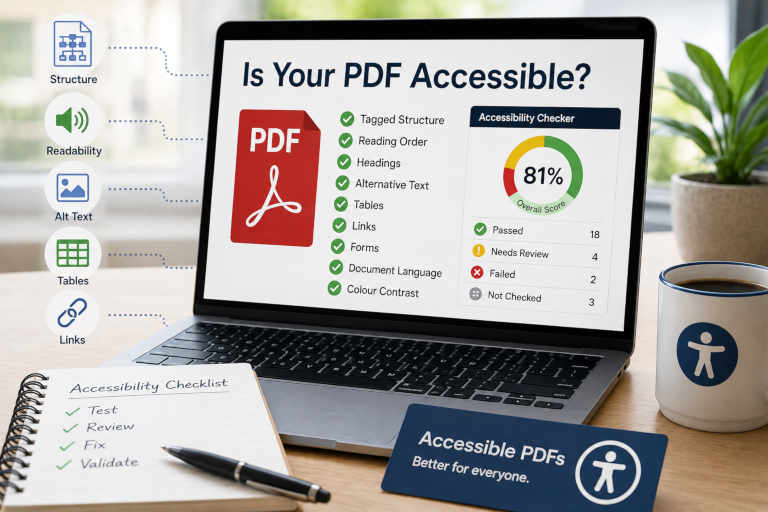
A PDF may look perfectly fine on screen and still contain significant accessibility barriers.
Headings can look like headings without being identified as headings. A table can be easy to understand visually but make little sense when read by a screen reader. Images may contain important information with no text alternative, and a document that appears to contain normal text may actually consist entirely of scanned images.
So, how do you know if a PDF is accessible?
The answer involves more than running an automated accessibility checker and looking for a green tick. Proper PDF accessibility testing requires a combination of automated checks, manual inspection and an understanding of how people using assistive technologies interact with documents.
What Does an Accessible PDF Look Like?
There is not necessarily any visual difference between an accessible PDF and an inaccessible one.
Many of the features that make a PDF accessible sit behind the visible document.
An accessible PDF will generally have a logical underlying structure that allows assistive technology to understand the content. Depending on the document, this can include:
- properly structured headings;
- paragraphs and lists that are correctly tagged;
- a logical reading order;
- meaningful alternative text for images;
- accessible tables;
- descriptive links;
- an identified document language;
- an appropriate document title;
- accessible form fields;
- keyboard-friendly navigation; and
- searchable text rather than images of text.
W3C provides specific PDF accessibility techniques covering areas including alternative text, bookmarks, reading order, tables, OCR, headings, forms, links, lists and document language.
This means that simply opening a PDF and visually inspecting it is not enough to determine whether it is accessible.
Can You Check PDF Accessibility in Adobe Acrobat Pro?
Yes. Adobe Acrobat Pro includes accessibility checking and remediation tools.
In current versions of Acrobat Pro, you can open All tools > Prepare for accessibility > Check for accessibility and run an accessibility check on the document.
Acrobat then reports its findings under categories such as document structure, page content, forms, alternative text, tables, lists and headings.
Results may be reported as:
- Passed;
- Failed;
- Skipped; or
- Needs Manual Check.
That last result is particularly important.
Adobe explicitly recognises that some accessibility requirements cannot be reliably evaluated automatically and therefore need human review.
An accessibility checker is an extremely useful tool, but it should be viewed as part of the testing process rather than definitive proof that a document is accessible.
Does Passing the Adobe Accessibility Checker Mean a PDF Is Accessible?
Not necessarily.
Automated testing tools are very good at identifying certain types of technical problems.
For example, software can determine whether:
- the document contains tags;
- a document language has been specified;
- a title is present;
- images are missing alternative text;
- content appears to be untagged;
- certain table structures are missing; or
- a scanned document contains no recognised text.
What software cannot always determine is whether those things have been implemented correctly.
For example, a checker may be able to confirm that an image has alternative text. It cannot necessarily decide whether that alternative text accurately communicates the meaning of the image.
A heading may technically be tagged as a heading while still being assigned the wrong heading level.
A table may contain table tags but have incorrect relationships between its headers and data cells.
A document may contain a tag structure while presenting its content in an illogical reading sequence.
That is why accessibility testing needs human judgement as well as automated validation.
Check Whether the PDF Is Tagged
One of the first technical checks is whether the document contains accessibility tags.
PDF tags create an underlying structural representation of the document. They can identify elements such as headings, paragraphs, lists, tables, figures and links so that assistive technologies can understand how the content is organised.
However, the presence of tags does not automatically mean that the PDF is accessible.
Tags can be:
- incorrectly applied;
- in the wrong order;
- improperly nested;
- duplicated;
- missing from some content; or
- used to identify the wrong type of content.
Adobe Acrobat can automatically add tags to an untagged PDF, including through its newer cloud-based auto-tagging functionality, but the resulting structure still needs to be reviewed where accessibility matters. Adobe also provides separate tools for inspecting and repairing reading order and more complex tagging issues.
We discuss this in more detail in our article How to Tag a PDF for Accessibility—and Why Tagging Alone Is Not Enough.
Check the Reading Order
Reading order is one of the areas where an apparently normal PDF can become confusing for someone using assistive technology.
Imagine a page containing two columns, a sidebar, an image caption and a footer.
A sighted reader can usually determine the intended sequence from the visual layout.
A screen reader depends heavily on the underlying document structure.
If that structure is incorrect, it might read:
- part of the first column;
- the footer;
- the second column;
- the image caption;
- and then return to the remainder of the first column.
Every individual piece of content may technically be present, but the resulting information can be difficult or impossible to follow.
W3C specifically identifies correct tab and reading order as a PDF accessibility technique, while Adobe provides a Reading Order tool for manually checking and repairing the sequence of page content.
Check Images and Alternative Text
Images that communicate information generally need an appropriate text alternative.
This can apply to:
- photographs;
- charts;
- graphs;
- diagrams;
- maps;
- icons;
- infographics; and
- illustrations.
The important question is not simply:
“Does this image have alt text?”
It is:
“Does the text alternative communicate the information or purpose that a person needs from this image?”
For a decorative image, the correct approach may be to exclude it from the accessible content altogether by marking it as an artifact.
For a meaningful chart or diagram, a short description of its appearance may not be sufficient. The user may need access to the information, trend or conclusion communicated visually.
This is another area where automated testing can identify a possible problem but human judgement is required to assess the solution.
Check Tables Carefully
Tables can be particularly challenging in accessible PDFs.
A simple table may require clear identification of:
- the table itself;
- rows;
- column and row headers; and
- individual data cells.
More complicated tables may require additional work to ensure that someone navigating the table with assistive technology can understand which headings relate to each data value.
A table can therefore look completely normal while having an incorrect or incomplete underlying structure.
W3C includes specific PDF techniques for table markup, and Adobe notes that more advanced table repairs may require working directly with the tag structure rather than relying only on automated tools.
Annual reports, research documents, government publications and financial documents frequently contain tables, making this an important part of professional PDF accessibility testing.
Check Scanned PDFs
Scanned PDFs present a different accessibility problem.
If a document has been created by scanning printed pages, what looks like text on screen may actually be an image of text.
Without Optical Character Recognition (OCR), a screen reader cannot interpret that image as ordinary document text.
One simple test is to try selecting individual words within the document. If you cannot select the text normally, you may be dealing with an image-only PDF.
OCR can convert the visible text into machine-readable text, but OCR itself is not the end of the remediation process.
The recognised text needs to be checked for accuracy, and the document may still require headings, tags, reading order, lists, tables, alternative text and other accessibility features.
W3C notes that a scanned document consisting only of images of text is inherently inaccessible until actual text is made available.
Check Links and Forms
Interactive elements introduce another layer of accessibility requirements.
Links should be identifiable to assistive technology and should have meaningful link text.
Forms may require:
- accessible field names;
- instructions;
- appropriate labels;
- keyboard navigation;
- a logical tab order;
- identification of required fields; and
- understandable error messages.
A form that works perfectly with a mouse may be difficult to complete using only a keyboard or screen reader.
Testing therefore needs to look beyond the document’s static text and consider how someone actually interacts with it.
Don’t Forget Visual Accessibility
PDF accessibility is not limited to screen readers and tags.
Depending on the document and the accessibility requirements being applied, testing may also need to consider issues such as:
- colour contrast;
- information conveyed using colour alone;
- text size and readability;
- meaningful use of headings;
- instructions;
- visual complexity;
- text embedded within graphics; and
- whether content remains understandable when enlarged.
Some of these issues may be repairable within the PDF itself.
Others are better corrected in the original Word, PowerPoint, InDesign or other source document before creating a new PDF.
This is one reason why professional remediation may involve reviewing both the final PDF and its editable source file.
What About WCAG and PDF/UA?
Two terms commonly encountered when discussing accessible PDFs are WCAG and PDF/UA.
WCAG provides accessibility requirements for digital content and includes PDF-specific techniques showing ways that WCAG success criteria can be addressed in PDF documents. W3C notes that these techniques are informative examples rather than the WCAG requirements themselves.
PDF/UA, or Universal Accessibility, is an ISO standard specifically concerned with accessible PDF technology.
The two approaches overlap in many areas but are not simply interchangeable.
Which standards and level of testing are appropriate can depend on the organisation, document, contractual requirements and intended use.
For organisations publishing important public-facing material, it is worth establishing the required accessibility standard before remediation work begins.
Can Online PDF Accessibility Checkers Tell You Everything?
No.
Automated accessibility checkers are valuable because they can inspect large numbers of technical properties quickly and consistently.
They are particularly useful for identifying obvious failures and highlighting areas that require investigation.
But accessibility contains many questions that require context:
- Is this the correct heading?
- Does this alt text convey the meaning of the image?
- Does this reading order make sense?
- Is this table understandable?
- Does this link description explain where it goes?
- Has decorative content been correctly excluded?
- Can a person understand the document when using assistive technology?
Software cannot reliably answer all of these questions.
A PDF should therefore not be declared accessible solely because an automated checker reports no failures.
When Should You Use Professional Document Remediation Services?
If testing reveals accessibility problems, the next step is remediation.
For a very simple document, someone with appropriate accessibility knowledge and PDF software may be able to correct the problems internally.
Professional document remediation services become particularly useful when you are dealing with:
- large or complex documents;
- reports containing many tables;
- forms;
- charts and diagrams;
- scanned documents;
- multi-column layouts;
- documents created from InDesign or other designed source material;
- recurring publications;
- large document libraries;
- public-sector or compliance-sensitive content; or
- documents that need to be remediated within a defined timeframe.
Effective document remediation is not simply a matter of running an automated repair tool.
It can involve examining the source file, repairing the PDF’s technical structure, addressing visual accessibility issues and manually reviewing the finished document.
What Do Professional Document Remediation Services Include?
The exact work required depends heavily on the document.
Professional document remediation services may include:
- reviewing the existing PDF;
- evaluating the editable source file;
- applying or repairing PDF tags;
- correcting heading structures;
- repairing reading order;
- remediating tables and lists;
- adding or reviewing alternative text;
- correcting links;
- remediating form fields;
- applying OCR to scanned content;
- setting document properties and language;
- identifying decorative content;
- correcting accessibility problems in the source document; and
- completing automated and manual testing.
A ten-page document containing complex tables, forms and graphics may require considerably more remediation than a much longer document consisting mainly of straightforward text.
For this reason, document remediation is usually scoped according to the structure and complexity of the files rather than page count alone.
How Atomic Web Strategy Can Help
Atomic Web Strategy provides document remediation services for organisations that need to improve the accessibility of their PDF and digital documents.
We can assist with individual documents or larger collections of PDFs, including reports, forms, publications and other public-facing material.
Our first step is generally to review a representative document and, where available, its editable source file.
This allows us to understand:
- how the document was created;
- the accessibility problems present;
- whether remediation should occur within the source file, PDF or both;
- the complexity of the technical remediation;
- the testing requirements; and
- the most efficient way to approach the work.
From there, we can establish an appropriate remediation scope rather than simply applying automated fixes and assuming the document is accessible.
Need to Know Whether Your PDFs Are Accessible?
If your organisation publishes PDFs online and you are unsure whether they are accessible, the fact that they look correct or pass a basic automated test may not tell you the whole story.
Tags, reading order, headings, images, tables, forms, links, scanned text and visual design can all affect the accessibility of a document.
Atomic Web Strategy can review your documents, identify accessibility barriers and provide professional document remediation services where remediation is required.
Send us a representative PDF and, if available, the editable source document. We can assess what is involved and provide a clear scope for the remediation work.
Lets start a Project together!
Request a Free Quote